> ## Documentation Index
> Fetch the complete documentation index at: https://docs.gnani.ai/llms.txt
> Use this file to discover all available pages before exploring further.
# Add Your Custom Scorecard
Scorecard Forms in **Aura** are structured evaluation templates used to assess the performance of human agents during customer calls.
These forms allow supervisors and quality analysts to review interactions using predefined criteria and assign scores based on the agent’s performance. Each scorecard form contains **sections and questions** that represent different aspects of the call, such as communication quality, issue handling, compliance, and customer experience.
The evaluation results help organizations monitor agent performance, maintain service quality, and generate insights through Aura’s analytics.
***
# Why Scorecard Forms are Important
Scorecard forms provide a **standardized way to evaluate agent calls**. Without structured evaluation criteria, quality monitoring becomes subjective and inconsistent.
Scorecard forms help organizations:
* Maintain consistent evaluation standards across teams
* Measure agent performance using structured scoring
* Identify coaching and training opportunities
* Ensure compliance with operational guidelines
* Generate performance analytics for agents
Since Aura focuses on **AI-powered analytics for human agents**, scorecard forms act as the foundation for quality monitoring and performance analysis.
# Creating a Scorecard Form
Follow these steps to create a new scorecard form.
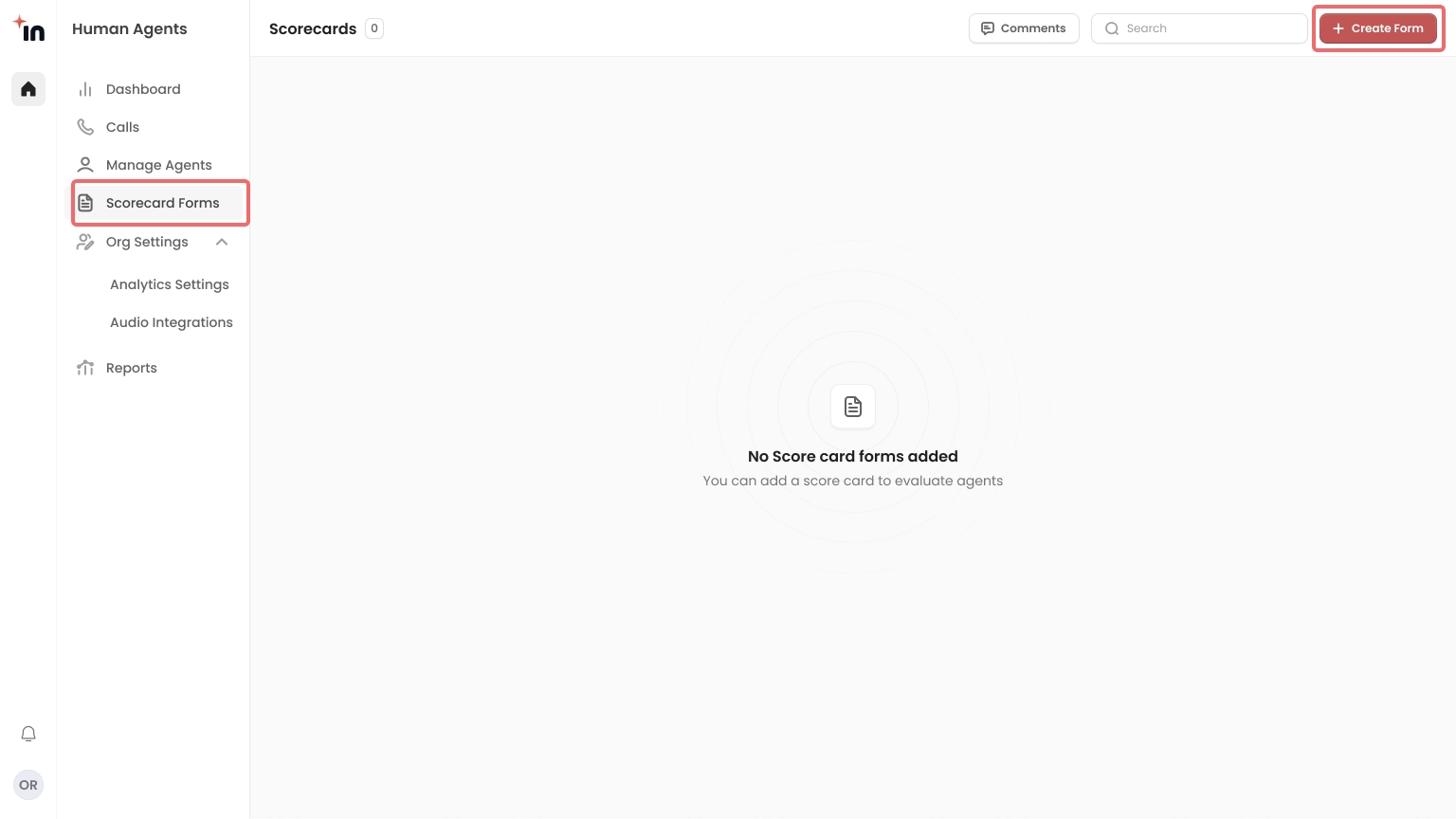
## Step 1: Navigate to Scorecard Forms
From the left navigation menu:
**Scorecard Forms → Create Form**
This opens the scorecard form builder.
 ## Step 2: Enter Form Details
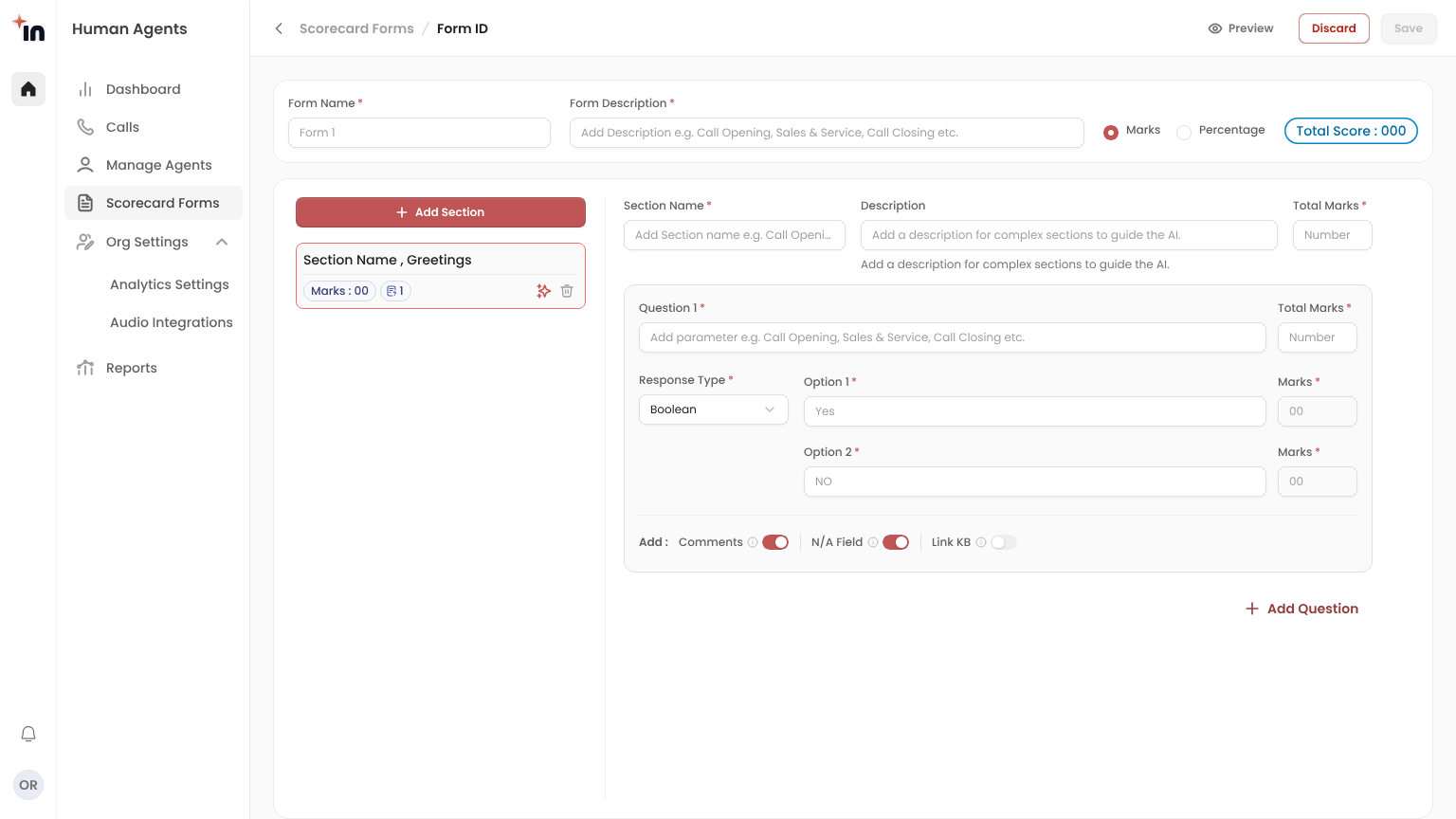
Provide the basic details for the scorecard.
### Form Name
Enter the name of the scorecard.\
Example: Customer Support QA Evaluation
### Form Description
Provide a brief description explaining the purpose of the form.\
Example: Evaluates customer support calls based on greeting, communication clarity, and issue resolution.
### Marks Configuration
Aura allows score-based evaluations. When marks are enabled:
* Each question contributes to the total score
* The system automatically calculates the **maximum marks**
## Step 2: Enter Form Details
Provide the basic details for the scorecard.
### Form Name
Enter the name of the scorecard.\
Example: Customer Support QA Evaluation
### Form Description
Provide a brief description explaining the purpose of the form.\
Example: Evaluates customer support calls based on greeting, communication clarity, and issue resolution.
### Marks Configuration
Aura allows score-based evaluations. When marks are enabled:
* Each question contributes to the total score
* The system automatically calculates the **maximum marks**
 # Components of a Scorecard Form
A scorecard form is composed of several configurable components that define how evaluations are structured.
***
## Sections
Sections help organise evaluation criteria into logical groups.
Examples include:
* Greeting & Introduction
* Communication Skills
* Issue Resolution
* Compliance
To create a section:
1. Click **Add Section**
2. Enter the **Section Name**
3. Define the **Total Marks**
The marks assigned to the section are **equally distributed across all questions in that section**.
Example: Section Marks: 10
Questions: 2\
Each question will carry **5 marks**.\
Users can also:
* Delete sections
* Rearrange sections
* Modify section details
***
## Questions
Each section contains one or more questions used to evaluate specific aspects of the call.
Example questions:
* Did the agent greet the customer professionally?
* Did the agent clearly understand the issue?
* Was the solution communicated properly?
Users can:
* Add multiple questions
* Delete questions
* Rearrange questions within a section
## Question Format
Each question in the scorecard follows a structured format to ensure consistent evaluation.\
\
A question includes the following elements:
### Question
The evaluation statement used to assess a specific behaviour or action during the call.\
Example: Did the agent greet the customer professionally?
***
### Response Type
Defines how the evaluator responds to the question.
Aura supports multiple response formats, including:
* **Boolean** (Yes / No)
* **Multiple Choice (Bullets)**
* **Multiple Choice (Checkbox)**
* **Comment-based responses**
* **Mixed question types**
These formats allow the scorecard to capture both **quantitative scores and qualitative feedback**.
***
### Response Options
Depending on the response type, evaluators can select from predefined options.
Example: Yes / No\
Each option can be assigned a **score value**.
Example:\
Yes → 5 marks\
No → 0 marks
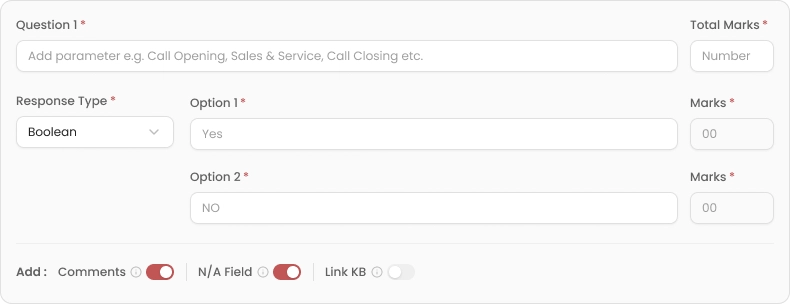
## Question Options
Each question can include additional evaluation options.
# Components of a Scorecard Form
A scorecard form is composed of several configurable components that define how evaluations are structured.
***
## Sections
Sections help organise evaluation criteria into logical groups.
Examples include:
* Greeting & Introduction
* Communication Skills
* Issue Resolution
* Compliance
To create a section:
1. Click **Add Section**
2. Enter the **Section Name**
3. Define the **Total Marks**
The marks assigned to the section are **equally distributed across all questions in that section**.
Example: Section Marks: 10
Questions: 2\
Each question will carry **5 marks**.\
Users can also:
* Delete sections
* Rearrange sections
* Modify section details
***
## Questions
Each section contains one or more questions used to evaluate specific aspects of the call.
Example questions:
* Did the agent greet the customer professionally?
* Did the agent clearly understand the issue?
* Was the solution communicated properly?
Users can:
* Add multiple questions
* Delete questions
* Rearrange questions within a section
## Question Format
Each question in the scorecard follows a structured format to ensure consistent evaluation.\
\
A question includes the following elements:
### Question
The evaluation statement used to assess a specific behaviour or action during the call.\
Example: Did the agent greet the customer professionally?
***
### Response Type
Defines how the evaluator responds to the question.
Aura supports multiple response formats, including:
* **Boolean** (Yes / No)
* **Multiple Choice (Bullets)**
* **Multiple Choice (Checkbox)**
* **Comment-based responses**
* **Mixed question types**
These formats allow the scorecard to capture both **quantitative scores and qualitative feedback**.
***
### Response Options
Depending on the response type, evaluators can select from predefined options.
Example: Yes / No\
Each option can be assigned a **score value**.
Example:\
Yes → 5 marks\
No → 0 marks
## Question Options
Each question can include additional evaluation options.
 ### Comments
When enabled, the **Comments** option allows evaluators to provide written feedback during evaluation.
This helps reviewers explain the context behind the score and provide constructive feedback for agent improvement.
Example:\
The agent greeted the customer politely but missed confirming the order number.
***
### N/A Field
The **N/A (Not Applicable)** field allows evaluators to mark a question as not relevant to the call being reviewed.
Example:\
If the call does not involve billing, billing-related questions can be marked as **N/A**.\
This ensures agents are not penalized for scenarios that did not apply to the interaction.
***
## Fatal Section
### Comments
When enabled, the **Comments** option allows evaluators to provide written feedback during evaluation.
This helps reviewers explain the context behind the score and provide constructive feedback for agent improvement.
Example:\
The agent greeted the customer politely but missed confirming the order number.
***
### N/A Field
The **N/A (Not Applicable)** field allows evaluators to mark a question as not relevant to the call being reviewed.
Example:\
If the call does not involve billing, billing-related questions can be marked as **N/A**.\
This ensures agents are not penalized for scenarios that did not apply to the interaction.
***
## Fatal Section
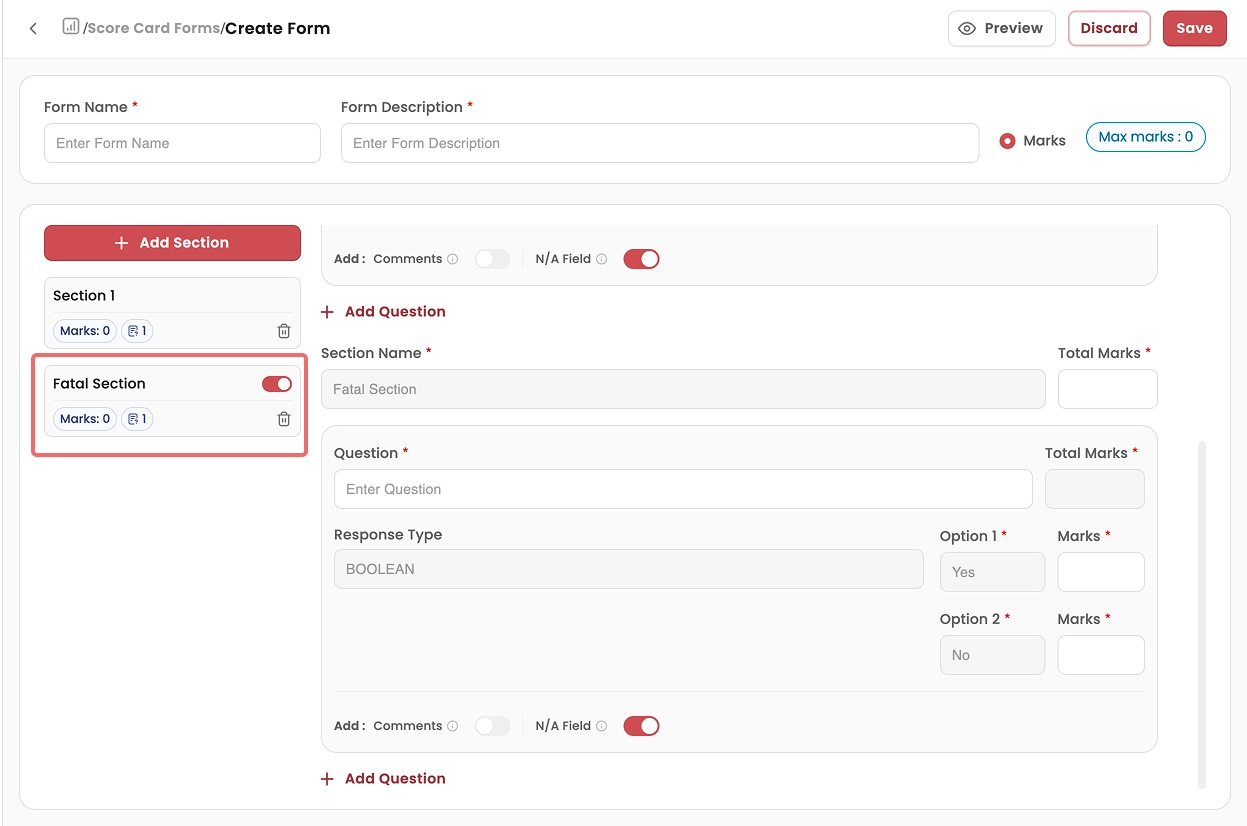 Aura allows users to create **Fatal Sections** for critical evaluation criteria.\
Fatal sections contain questions that represent serious compliance or process violations.
Examples include:
* Security verification not performed
* Incorrect information was provided to the customer
* Mandatory compliance statement skipped
Users can add multiple questions in a single section.\
If a fatal question fails, the evaluation may result in **automatic failure regardless of the total score**.
***
## AI-Generated Sections
Aura allows users to create **Fatal Sections** for critical evaluation criteria.\
Fatal sections contain questions that represent serious compliance or process violations.
Examples include:
* Security verification not performed
* Incorrect information was provided to the customer
* Mandatory compliance statement skipped
Users can add multiple questions in a single section.\
If a fatal question fails, the evaluation may result in **automatic failure regardless of the total score**.
***
## AI-Generated Sections
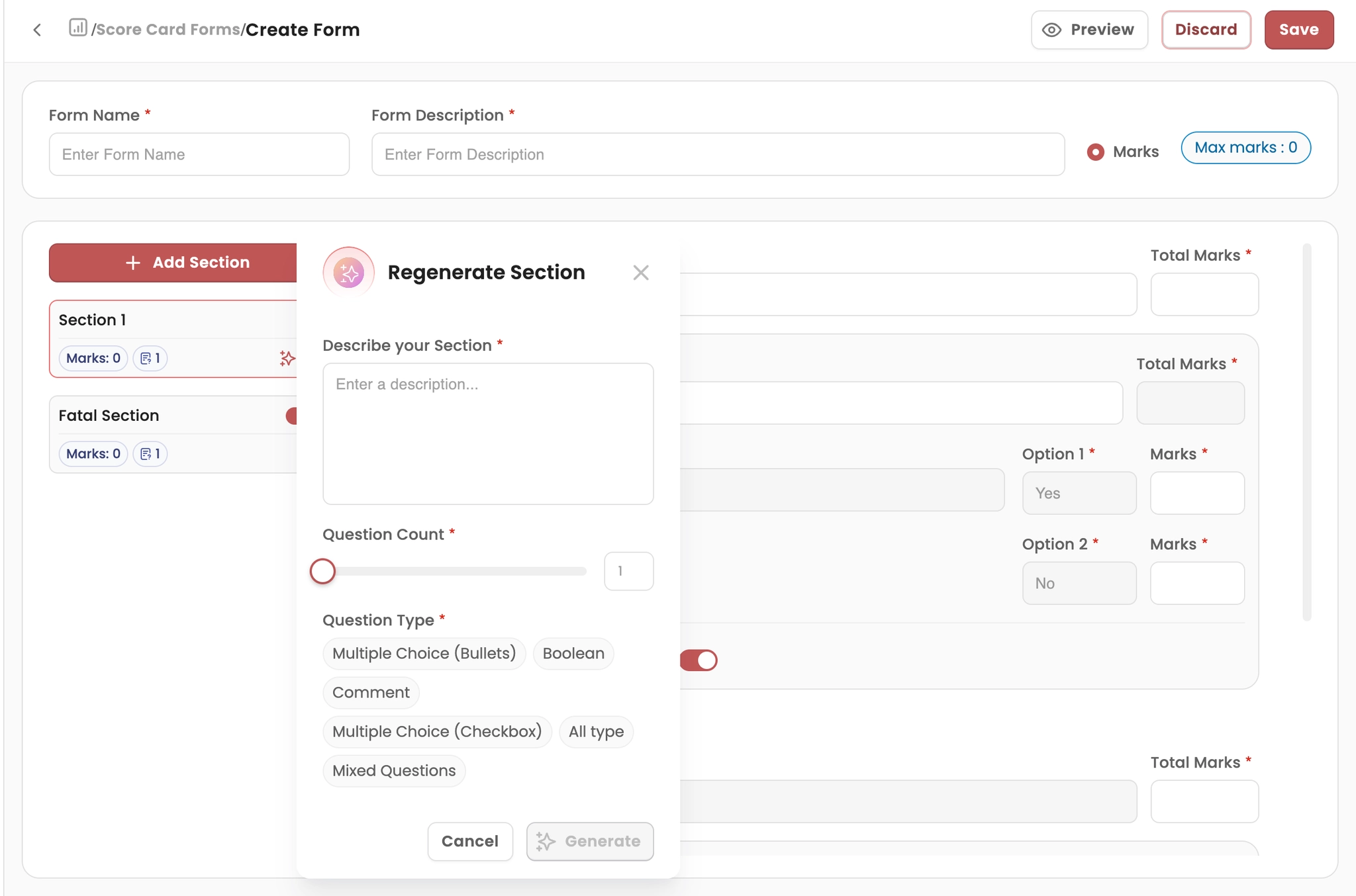 Aura also allows users to generate scorecard sections using **AI**.
To generate a section:
1. Click the **Generate Section** option
2. Describe the section you want to create
3. Select the **number of questions**
4. Choose the **question type**
Supported question types include:
* Multiple Choice (Bullets)
* Boolean
* Comment
* Multiple Choice (Checkbox)
* Mixed Questions
* All Types
Aura will automatically generate relevant evaluation questions based on the prompt.\
This helps teams quickly build structured scorecards without manually writing each question.
***
## Previewing the Form
Before saving the scorecard, users can review the structure using the **Preview** button.
The preview allows users to check:
* Section structure
* Question order
* Response types
* Scoring distribution
***
## Saving the Form
Once the scorecard structure is complete:
Click **Save**\
The form will be available in the **Scorecard Forms dashboard** and can be used to evaluate agent calls.
Aura also allows users to generate scorecard sections using **AI**.
To generate a section:
1. Click the **Generate Section** option
2. Describe the section you want to create
3. Select the **number of questions**
4. Choose the **question type**
Supported question types include:
* Multiple Choice (Bullets)
* Boolean
* Comment
* Multiple Choice (Checkbox)
* Mixed Questions
* All Types
Aura will automatically generate relevant evaluation questions based on the prompt.\
This helps teams quickly build structured scorecards without manually writing each question.
***
## Previewing the Form
Before saving the scorecard, users can review the structure using the **Preview** button.
The preview allows users to check:
* Section structure
* Question order
* Response types
* Scoring distribution
***
## Saving the Form
Once the scorecard structure is complete:
Click **Save**\
The form will be available in the **Scorecard Forms dashboard** and can be used to evaluate agent calls.